
Site and formArticle 4 of 30
Submit the site to search engines
For your microsite to appear in Google, it needs three things: files that guide search engines (robots.txt and sitemap.xml), a title and description for each page, and a submission in Google Search Console.
Before you begin
Section titled “Before you begin”- Your site must have its permanent address (custom domain). Ask your project manager for it if needed.
- Write down the address (the link) for each page you want to index: you can find them in the Pages window of the editor.
Add robots.txt and sitemap.xml
Section titled “Add robots.txt and sitemap.xml”- Open the site editor, then click the gear icon tab in the left panel.
- Click Files (robots.txt, etc.).
- Click Add file and enter the name
robots.txt. Repeat forsitemap.xml. - For each file, enter the MIME type and paste the content below into the “Content” field, adapting it to your site.
- Click Validate, then Save.
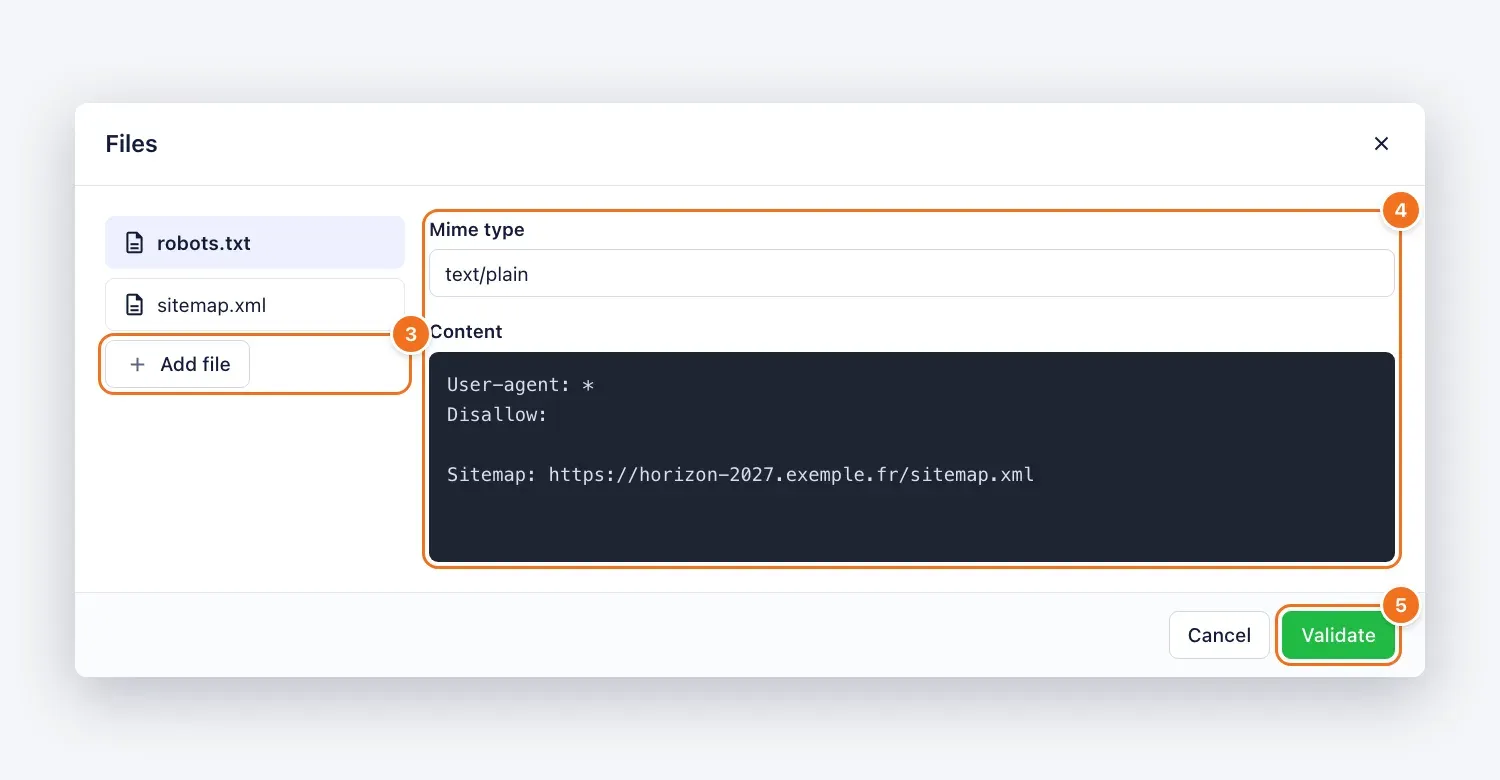
Content of robots.txt (type text/plain): replace the address with your site’s address.
User-agent: *Disallow:
Sitemap: https://horizon-2027.exemple.fr/sitemap.xml
Content of sitemap.xml: one <url> block per page. Specify the current date in <lastmod>, and the page’s importance in <priority>, ranging from 1.0 (homepage) to 0.1.
<?xml version="1.0" encoding="UTF-8"?><urlset xmlns="http://www.sitemaps.org/schemas/sitemap/0.9"> <url> <loc>https://horizon-2027.exemple.fr/</loc> <lastmod>2027-01-15</lastmod> <priority>1.0</priority> </url> <url> <loc>https://horizon-2027.exemple.fr/programme</loc> <lastmod>2027-01-15</lastmod> <priority>0.9</priority> </url></urlset>Fill in the title and description for the pages
Section titled “Fill in the title and description for the pages”- In the Content tab, click the gear icon to the right of PAGES.
- On the page you want to optimize, click Edit Metadata.
- In the Header Management window, on the Meta tab, add a row
titleand a rowdescription(in the name column), then enter the text in the “content” field and in each language column (content - fr…). The Script, Link, Style, and tc_vars tabs do not need to be filled out. - Validate, then click Save.

Repeat this process for each page you want to appear in search engines. A page without metadata will not be featured.
Submit the site to Google Search Console
Section titled “Submit the site to Google Search Console”- Go to Google Search Console, click Get Started, and log in with your Google account.
- In the list of properties, click Add Property, then choose URL Prefix and enter the site’s full address.
- Choose the HTML Tag validation method and copy the provided tag (
<meta name="google-site-verification" content="..." />). - In the site editor, under the gear icon tab, click Script & Tags and paste the tag into Site Header. Validate, then click Save.
- Go back to Google Search Console and click Validate.
Send the sitemap to Google
Section titled “Send the sitemap to Google”- In Google Search Console, under the Sitemaps menu, add
sitemap.xml. - Check whether your important pages have been indexed using the URL Inspection tool (search bar at the top).
The first traffic data usually appears within 24 to 48 hours.
See also
Section titled “See also”Was this page helpful?
Thanks for your feedback!
Can’t find your answer? Contact support
© AppCraft EventsAppCraft Events websiteLog inContact support