
Check-inArticle 3 of 5
Welcome participants at the reception desk
The Reception desk is for the welcome team on the day of the event. On a single screen, they find a participant, correct their registration if needed, and print their badge. They can also register someone who shows up without being registered.
Before you begin
Section titled “Before you begin”- The Reception desk is at the very top of the menu, before the CRM / Registration section.
- To print badges, first configure the badge in the Badges module.
- To register people on site, check your registration form. The desk uses the event’s first form. If the event has several, ask AppCraft to choose the one for the desk: no setting in the back office lets you do this. See Create a registration form.
Print a badge
Section titled “Print a badge”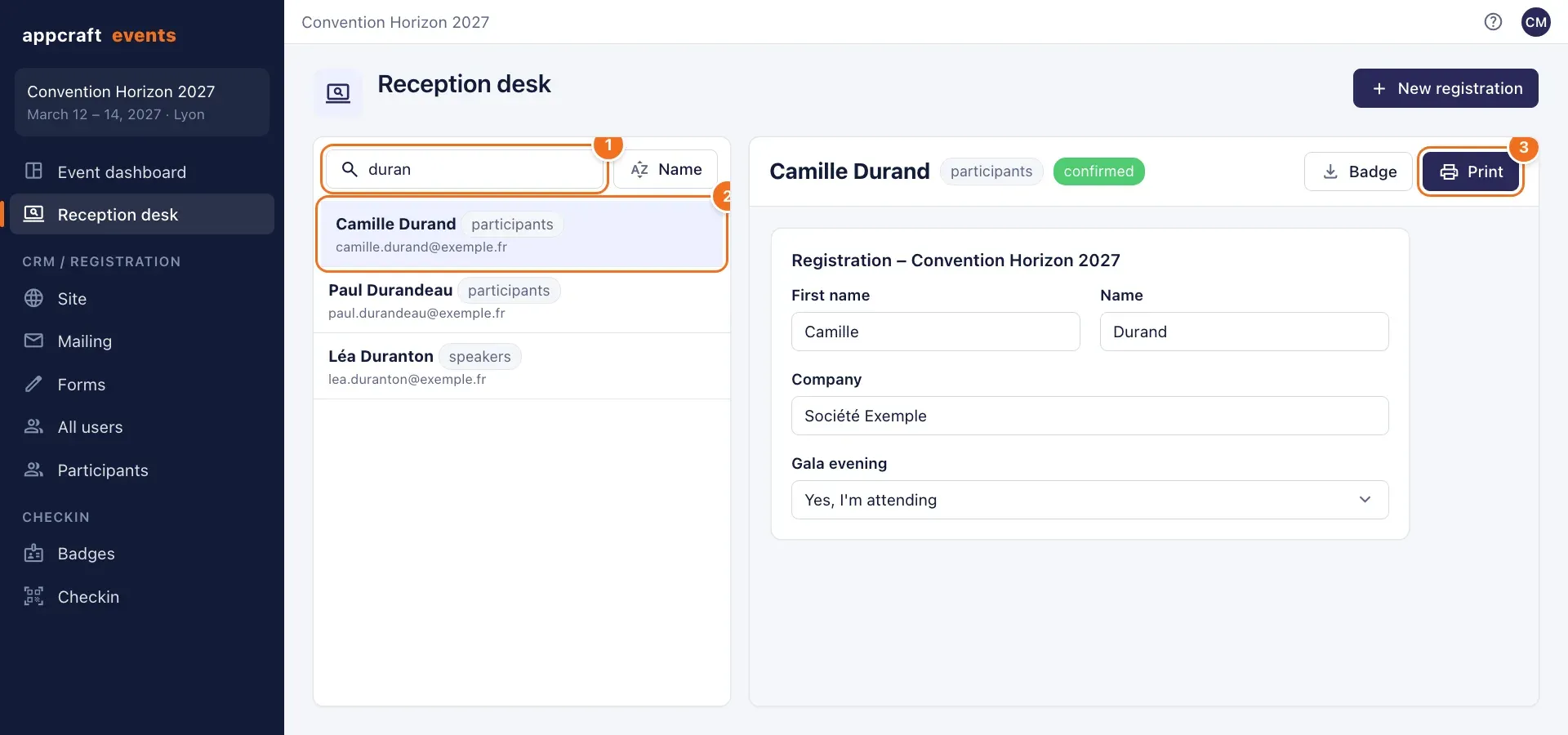
- In Reception desk, type the participant’s name or email in the Search… field.
- Click the participant in the list on the left. Their registration form appears on the right.
- Click Print. Your browser’s print window opens with the badge.
The Badge button downloads the badge as a PDF, for example to send it to another printer.
Correct a registration before printing
Section titled “Correct a registration before printing”- Select the participant in the list.
- Edit the answers in the form shown on the right, then submit the form.
- Click Print: the badge uses the corrected information.
Register a participant on site
Section titled “Register a participant on site”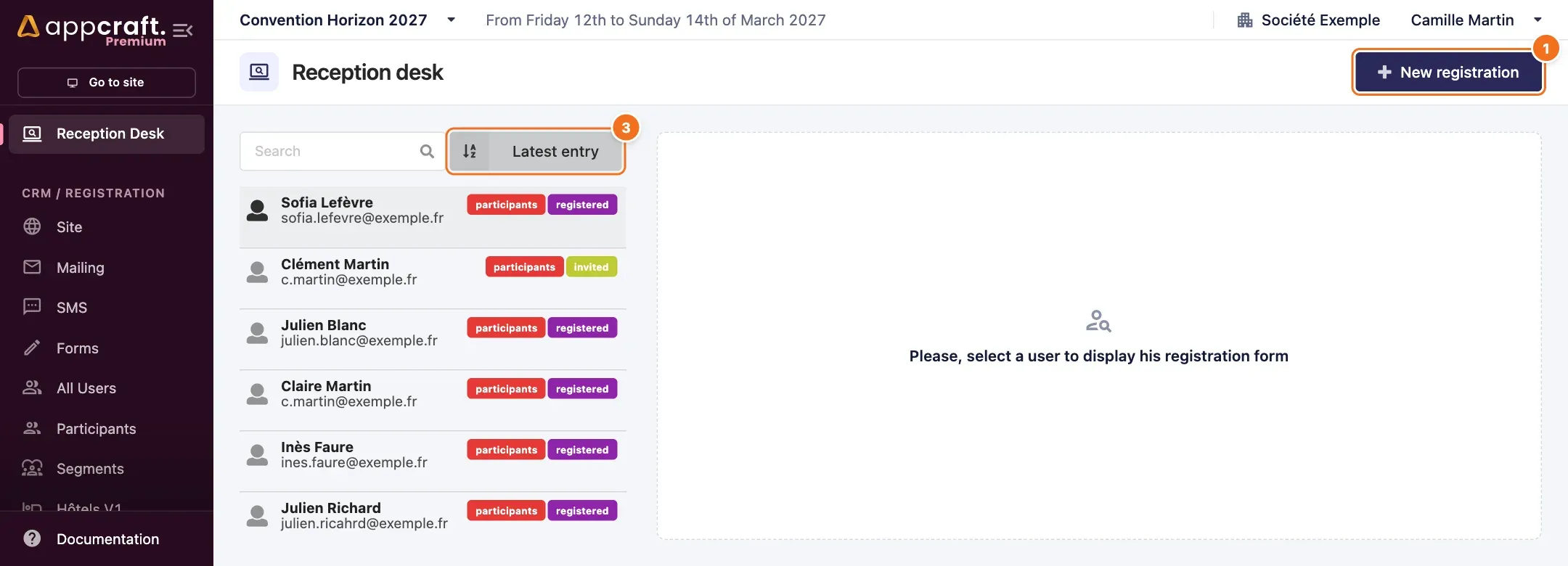
- Click New registration, at the top right. The form opens in a new tab.
- Fill in the form for the person, then submit it.
- Go back to the desk. In the sort next to the search, choose Latest entry: the person appears at the top of the list.
- Select them, then click Print.
Frequently asked questions
Section titled “Frequently asked questions”The Print button doesn’t appear. Why?
Section titled “The Print button doesn’t appear. Why?”The badge probably isn’t configured yet. Open the Badges module, build the badge, and save it.
What is the difference with the Printer tab in the Badges module?
Section titled “What is the difference with the Printer tab in the Badges module?”The Printer tab is used to prepare badges in advance. The desk adds the registration form next to the badge, so you can correct a registration or register someone on site.
See also
Section titled “See also”Was this page helpful?
Thanks for your feedback!
Can’t find your answer? Contact support
© AppCraft EventsAppCraft Events websiteLog inContact support