
Settings and connectorsArticle 1 of 6
Generate a custom document for each participant
The Documents module converts a Word file into a personalized document for each participant: certificate, invitation, pro forma invoice, etc. The participant’s fields are filled in automatically, and the participant downloads their document as a PDF.
Before you begin
Section titled “Before you begin”- The Documents module is located in the Settings section of the menu.
- Prepare a Word file (.docx). Place variables within curly braces where the participant’s information should appear, for example,
{firstName},{lastName}, or{company}.
Add the document template
Section titled “Add the document template”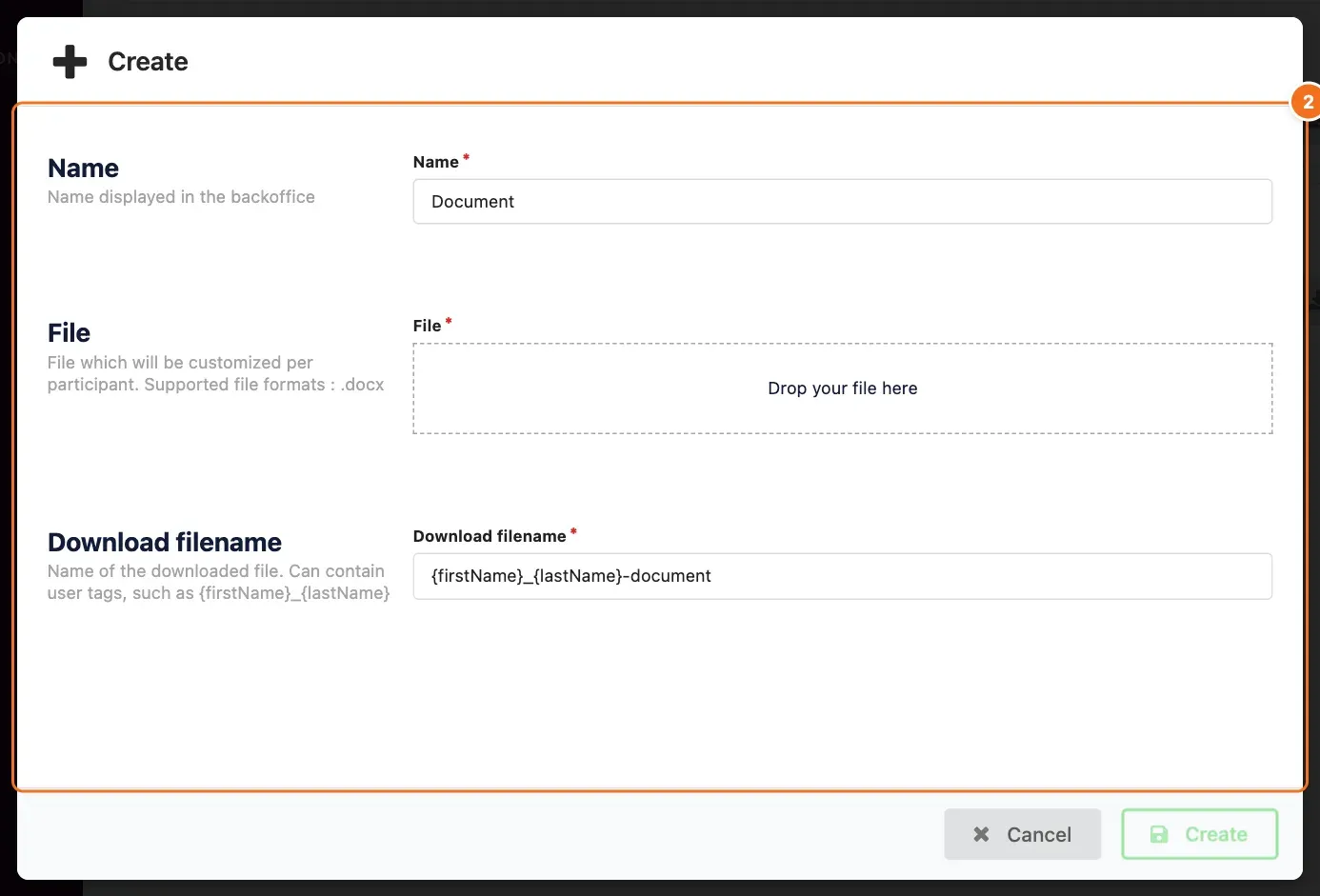
- In Documents, click Add.
- Fill out the window:
- Name: the displayed name in the back office;
- File: Upload your .docx file;
- Download filename: the name of the file received by the participant. It may contain variables, such as
{firstName}_{lastName}.
- Click Create. The document appears as a card, with the Preview, Download, and Edit buttons.
Check the output for a participant
Section titled “Check the output for a participant”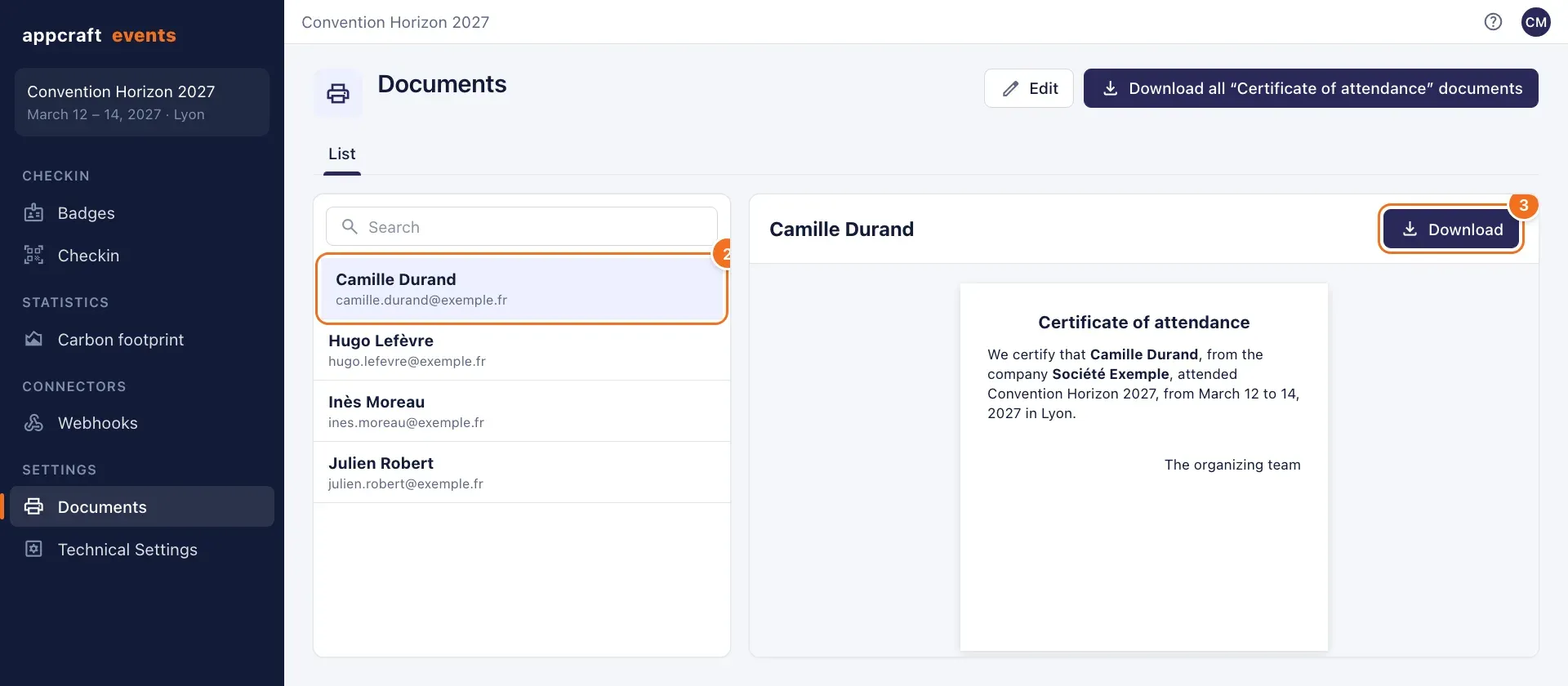
- On the document card, click Preview.
- Search for a participant in the list on the left and click on their name. Their document will show on the right, populated with the information from their participant record.
- Click Download to get the PDF.
To retrieve the documents for all participants, click “Download all documents ‘…’.” The back office will prepare a ZIP archive. You can limit the batch using Skip first users and “Max documents.”
Send the download link via email
Section titled “Send the download link via email”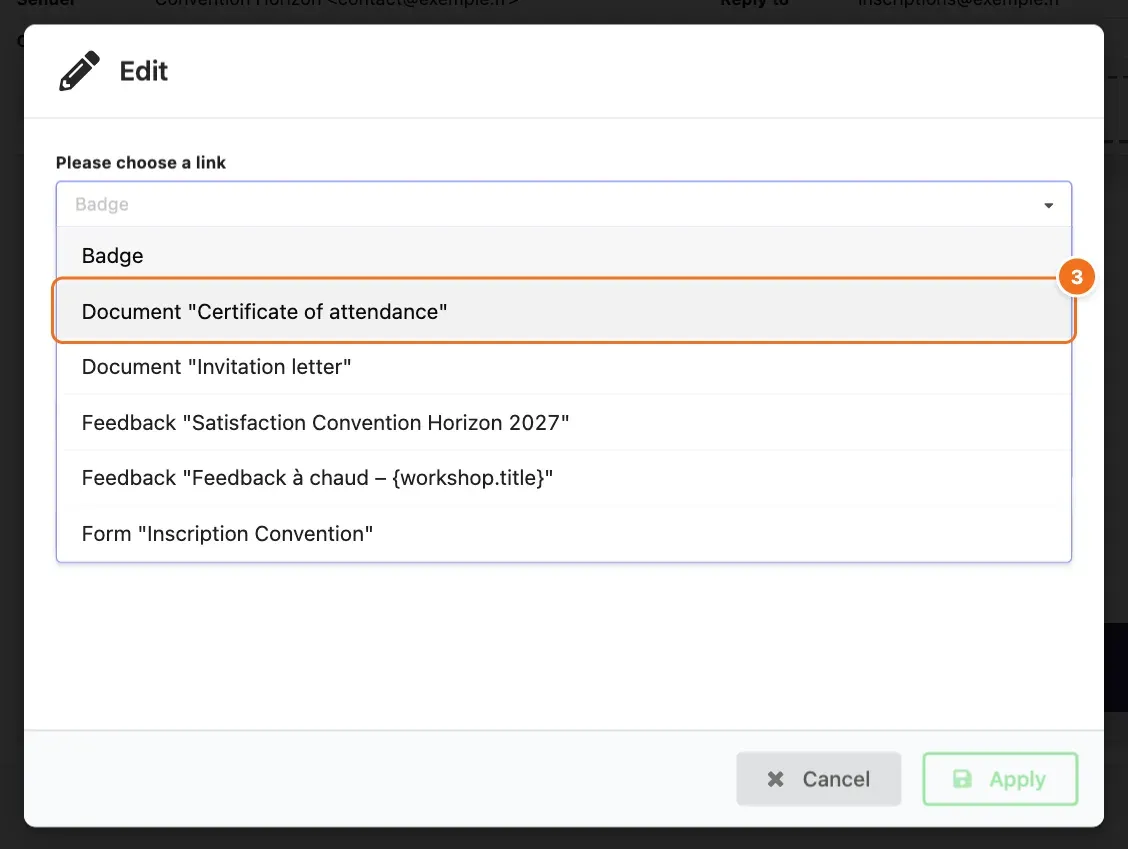
- In Mailing, open the email template intended for participants.
- Add a Button block, or select an existing button.
- Click the gear icon on the button. Under “Please choose a link,” choose “Document ‘…’” with the name of your template, then click “Apply.”
- Save the template.
Each recipient receives a link to their own document.
Frequently Asked Questions
Section titled “Frequently Asked Questions”One variable remains blank in the document. Why?
Section titled “One variable remains blank in the document. Why?”Check the spelling of the variable in the Word file: it must match the participant registration field key exactly. Also verify that the field is filled in on that participant’s record in the participant list (see Manage the Participant List).
Can I edit the Word file afterward?
Section titled “Can I edit the Word file afterward?”Yes. Click Edit on the document card and upload the new file. Links that have already been sent will then point to the new version.
See also
Section titled “See also”Was this page helpful?
Thanks for your feedback!
Can’t find your answer? Contact support
© AppCraft EventsAppCraft Events websiteLog inContact support