
CommunicationArticle 5 of 13
Create and manage your SMS templates
An SMS template is a ready-to-use message that you send or schedule for your participants. This article explains how to create a template, test it, categorize it, and archive it.
Before you begin
Section titled “Before you begin”- The SMS module must be enabled for your event. It appears in the menu under the CRM / Registration section.
- Your participants must have a phone number. Add a phone number field to your registration form: a text or number field does not allow you to send SMS messages.
Overview of the Templates tab
Section titled “Overview of the Templates tab”The Templates tab includes:
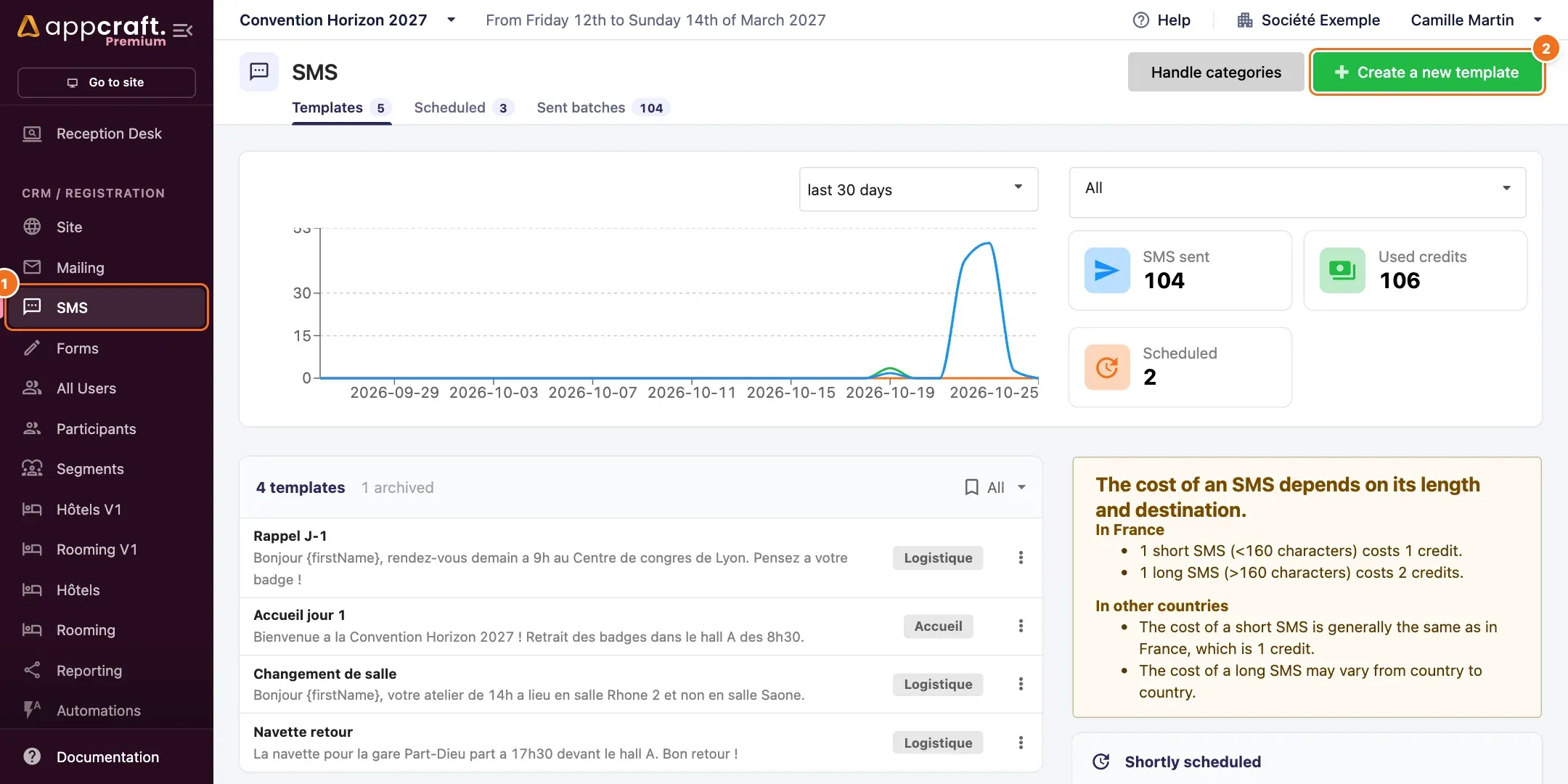
- at the top, a graph showing SMS messages sent, used credits, and Scheduled messages, filterable by time period (default: last 30 days) and by template;
- on the left, the list of your templates, with a filter by category;
- on the right, a summary of SMS costs, shortly scheduled SMS messages, and Recently sent SMS messages.
Create a template
Section titled “Create a template”- In the menu, click SMS.
- Click Create a new template.
- Enter the Title. It is only visible in the back office.
- Choose a category if needed.
- Enter the Sender: the name that appears on the recipient’s phone.
- Write the text of the SMS. To insert a participant’s data (their first name, for example), type
{and choose the field from the list. - Click Save.
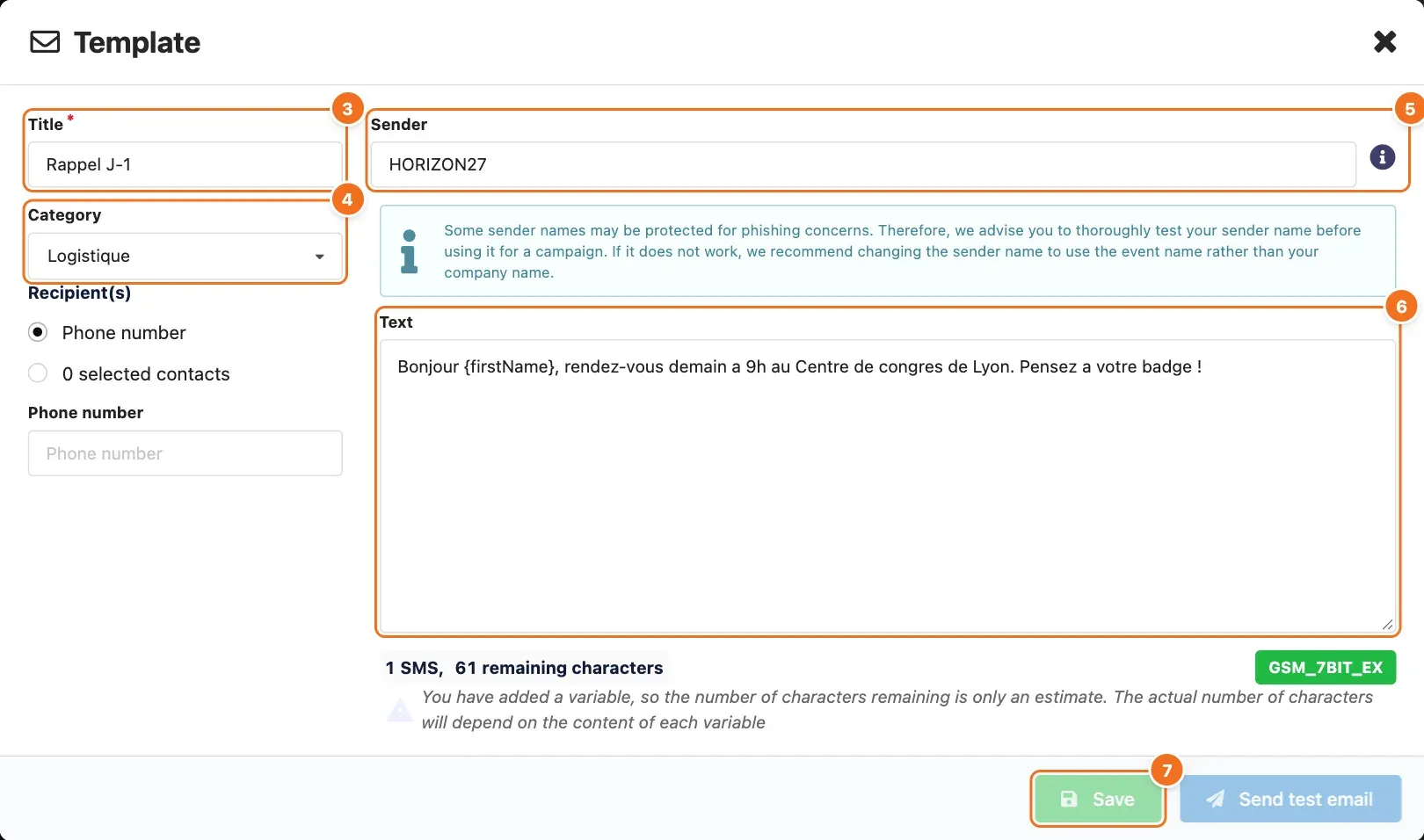
Below the text, a counter shows the number of billed SMS messages and the remaining characters. The green label GSM_7BIT indicates standard encoding. The red label UTF16 indicates a special character (highlighted in the text), which reduces the available space and can double the cost.
Sender Rules
Section titled “Sender Rules”- Between 3 and 11 characters, starting with a letter.
- Letters and numbers only (A–Z, 0–9). Spaces, dashes, and periods are accepted.
- No phone number.
Test a template
Section titled “Test a template”- Open the template.
- Check the phone number in the Recipient(s) field. By default, this is your own number.
- Click Send test email.
The button is grayed out as long as the template contains unsaved changes.
Organize your templates by category
Section titled “Organize your templates by category”- Click Handle categories to add, rename, or delete a category.
- On a template’s row, click … and then Add category.
- Use the category filter above the list to show only one category.
If you delete a category, it is removed from the templates that used it: those templates remain in the list, unassigned to any category.
Other actions in the “…” menu
Section titled “Other actions in the “…” menu”| Action | Effect |
|---|---|
| Edit | Opens the template editor. |
| Schedule | Opens the scheduling window with this template preselected. |
| Add category | Assign the template to a category. |
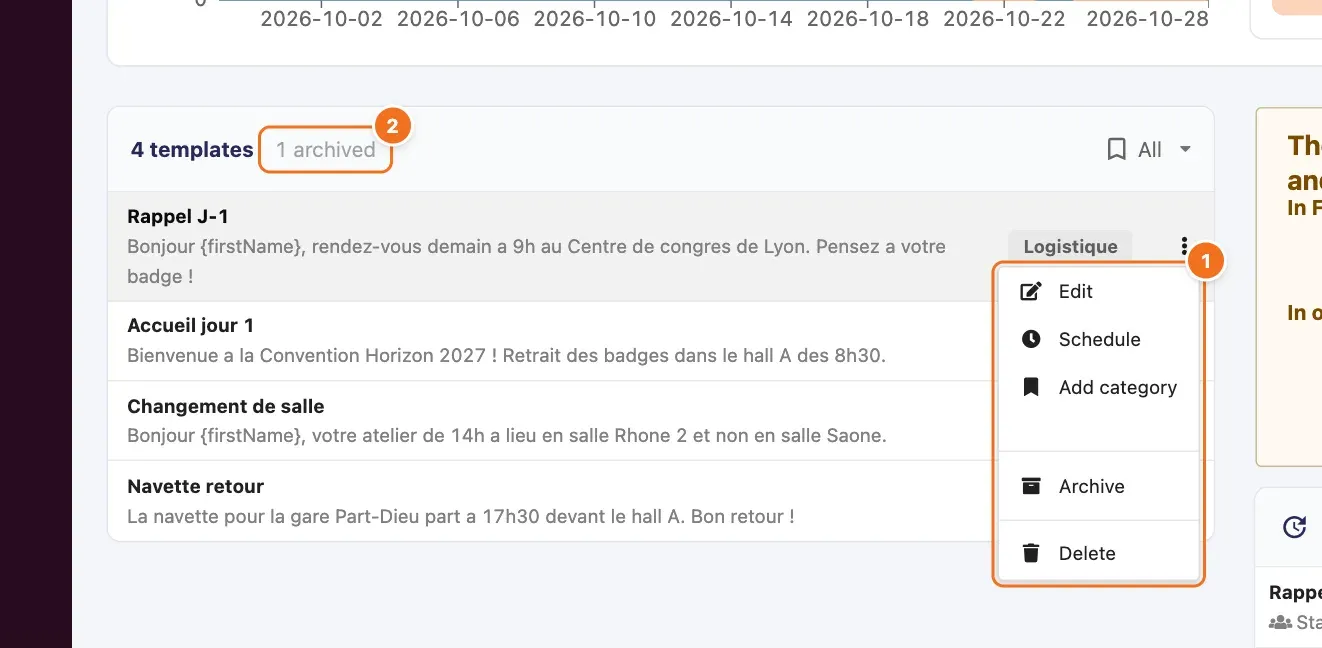
| Archive | Move the template to the “Archived Templates” tab (for example, 1 Archived), above the list. |
| Delete | Deletes the template and all scheduled SMS messages. |
To retrieve an archived template, click the “Archived” tab (1 archived, 2 archived…) above the list, then click … > Unarchive.
How much does an SMS cost?
Section titled “How much does an SMS cost?”| Destination | Short SMS (fewer than 160 characters) | Long SMS (more than 160 characters) |
|---|---|---|
| France | 1 credit | 2 credits |
| Other countries | Generally 1 credit | Varies by country |
For example, 10 short SMS messages to France cost 10 credits, while 10 long SMS messages cost 20.
Frequently Asked Questions
Section titled “Frequently Asked Questions”How do I send a SMS to my participants?
Section titled “How do I send a SMS to my participants?”From the participant list: select the recipients, then send an SMS by choosing your template. To schedule sending, set it up in the Scheduled tab.
Why is the “Send test email” button grayed out?
Section titled “Why is the “Send test email” button grayed out?”The template contains unsaved changes, or a required field is invalid (empty title, invalid sender). Click Save, then try again.
See also
Section titled “See also”- Schedule sending of an SMS
- Track SMS messages sent
- Send an email or text message to participants
- Organize attendance tracking with check-in: check-in sessions can send an SMS
Was this page helpful?
Thanks for your feedback!
Can’t find your answer? Contact support
© AppCraft EventsAppCraft Events websiteLog inContact support