
Site and formArticle 11 of 30
Set up the form's automatic emails and SMS
The Emails & SMS tab chooses the emails and SMS sent automatically: on registration, on change, when an invitation is declined, and during moderation. Its cards follow the same moments as the Screens tab.
Before you begin
Section titled “Before you begin”- First create your email templates in the Mailing module. See Create and edit an email template. If the event has none, the tab tells you so and shows a Create one in Mailing link.
- For SMS, the SMS module must be enabled and your SMS template created. The form must ask for the phone number.
Choose what is sent
Section titled “Choose what is sent”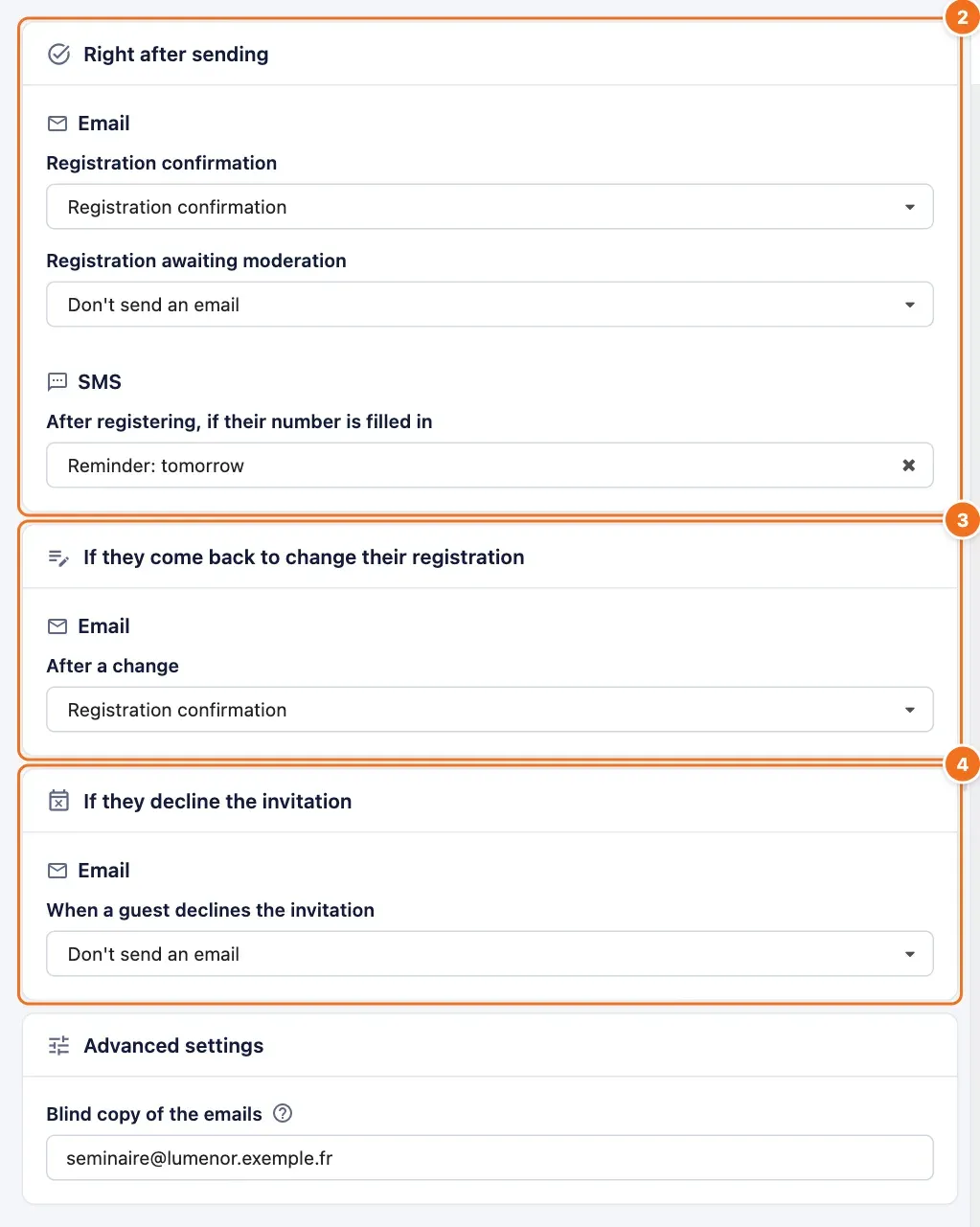
- Open the form, Emails & SMS tab.
- Right after sending: choose the Registration confirmation template. Depending on your form, also choose the To each registered companion email and the Registration awaiting moderation email. Under SMS, choose the SMS sent After registering, if their number is filled in.
- If they come back to change their registration: choose the email sent After a change. It can reuse the confirmation template, but you must choose it: with no template, nothing is sent.
- If they decline the invitation: choose the email sent When a guest declines the invitation, or Don’t send an email.
- Click Save.
A grayed-out list means the email does not apply to this form. For example, the moderation email stays grayed out until moderation is enabled in the Settings tab.
Which email is sent, and when
Section titled “Which email is sent, and when”| Sent when… | |
|---|---|
| Registration confirmation | The participant answers “I’m coming”, or submits a form with no attendance question |
| To each registered companion | A companion is declared in the form |
| Registration awaiting moderation | The participant registers and waits for your approval |
| After a change | The participant reopens their personal link and submits their already completed form again. The email is sent on every submission, even if nothing changed |
| When a guest declines the invitation | The participant answers “I’m not coming” |
An email left on Don’t send an email, or with no template, sends nothing. The form never falls back to the confirmation. This is true for the moderation-pending email, the change email, and the decline email. With moderation on and an empty pending email, the participant therefore receives no email when they register.
Notify the participant of your moderation decision
Section titled “Notify the participant of your moderation decision”With moderation, the form sends a single email: the pending email, at registration. It sends nothing when you approve or reject the registration, and the registration confirmation is not sent at that point either.
To notify the participant of your decision, schedule an automatic sending in Mailing > Scheduled > Schedule sending, with the On moderation validated trigger (and On moderation rejected for a rejection). See Moderate registrations.
See also
Section titled “See also”Was this page helpful?
Thanks for your feedback!
Can’t find your answer? Contact support
© AppCraft EventsAppCraft Events websiteLog inContact support