
Visual assetsArticle 5 of 5
Preparing badge graphics
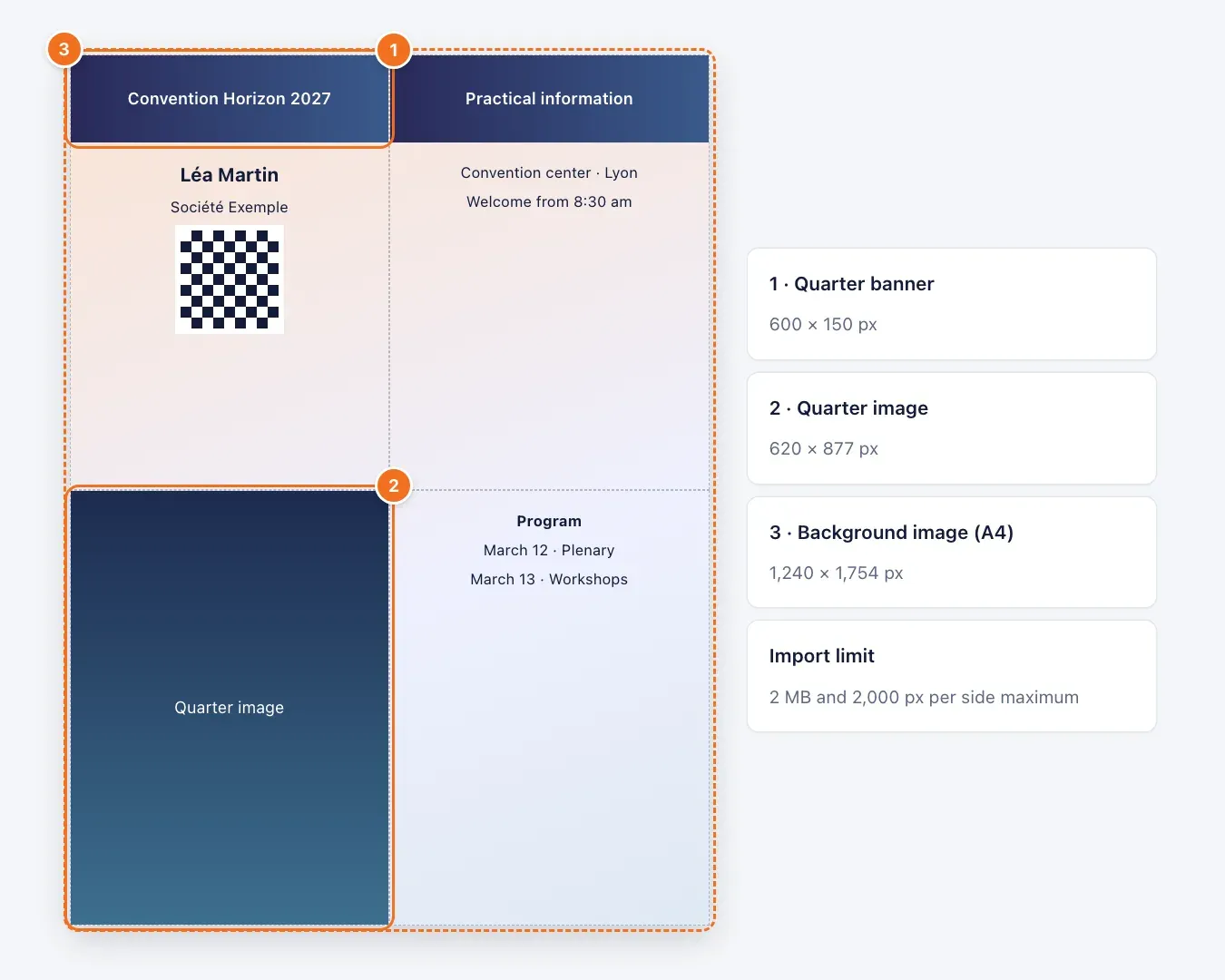
An AppCraft badge is a sheet cut into quarters. Each quarter can show a banner or a full-size image, and a background image can cover the entire sheet. This page provides the dimensions you need to prepare.
Recommended dimensions
Section titled “Recommended dimensions”| Visual | Where to submit it | Width | Height |
|---|---|---|---|
| Quarter Banner | One-quarter banner block, Image field | 600 px | 150 px |
| Image of a quarter (1/4 background) | Image type quarter, image field (620 x 877 pixels) | 620 px | 877 px |
| Sheet background image | Design section, Background image field (1240 x 1754 pixels) | 1,240 px | 1,754 px |
Upload the visuals
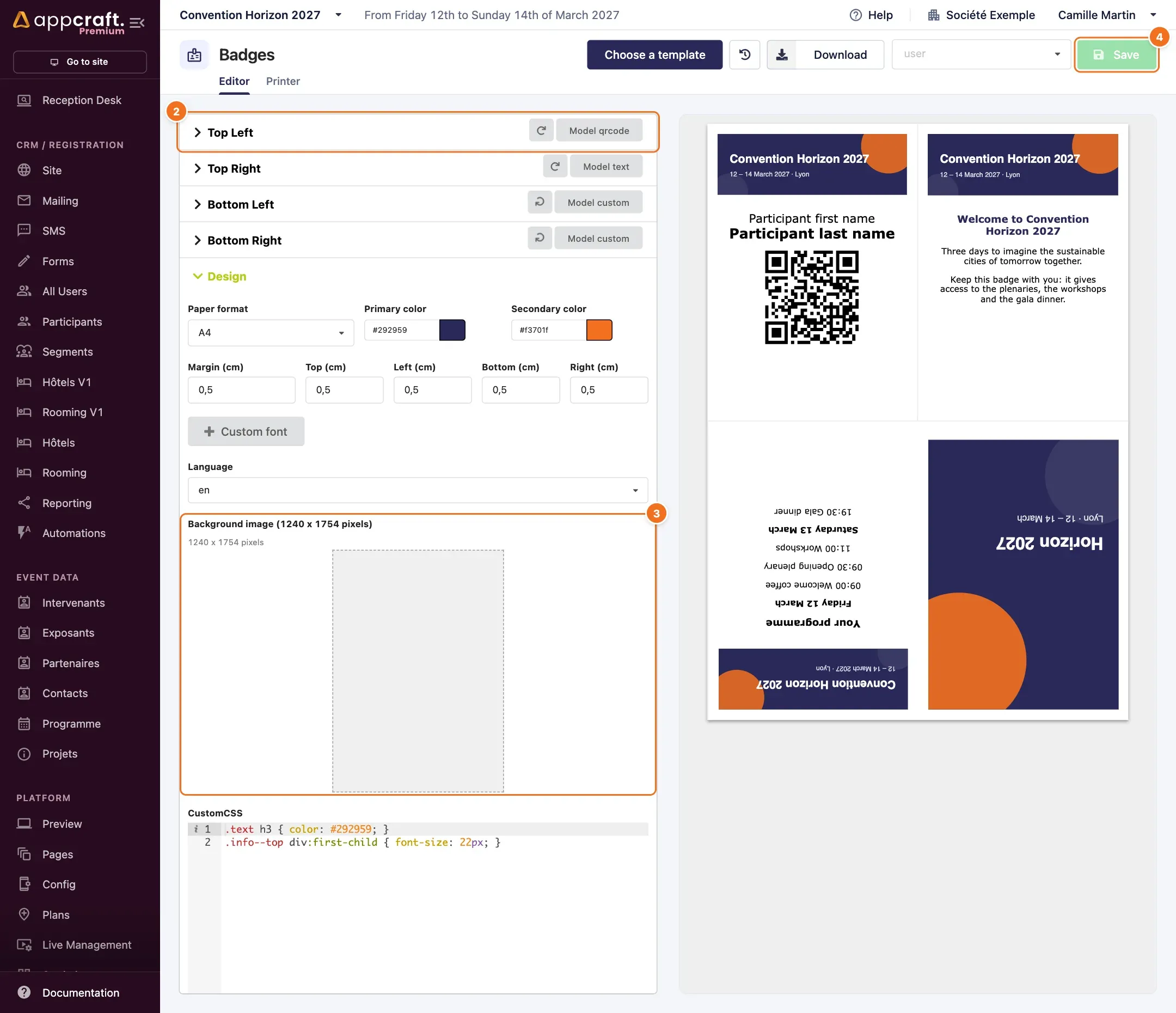
Section titled “Upload the visuals”- In the menu, click Badges, then click the Editor tab.
- Open the quarter you want to design: Top Left, Top Right, Bottom Left, or Bottom Right. Drag and drop the banner or image into the corresponding block.
- For a background image, open the Design section, check the Paper format, and then drag the image into Background image (1240 x 1754 pixels).
- Check the preview on the right, then click Save.
Frequently Asked Questions
Section titled “Frequently Asked Questions”Why 1,240 × 1,754 px?
Section titled “Why 1,240 × 1,754 px?”It is an A4 sheet at 150 dots per inch: high enough quality for printing a badge, with a file small enough to stay under the 2 MB limit.
My QR code doesn’t scan properly on the background image
Section titled “My QR code doesn’t scan properly on the background image”Keep the background behind the QR code light and solid. Test the scan with the check-in app before printing.
See also
Section titled “See also”Was this page helpful?
Thanks for your feedback!
Can’t find your answer? Contact support
© AppCraft EventsAppCraft Events websiteLog inContact support